


Insert Computers FAQ

No, you can run the IC2.1, ICX2.1, and IC1.1 perfectly fine in standalone mode! In practice, you will most likely make all your settings and adjustments directly from the front panel—that’s what it’s designed for, and it works just like any other piece of hardware.
However, by using the plugin, you gain access to some exclusive functionality. Without the plugin, you cannot use automation, edit insert names, or save and recall settings within your session.
These features alone make the plugin a valuable addition to your workflow.
The Insert Computers allow you to automate settings and parameters, but in a slightly different and more intuitive way.

You might be used to automating individual parameters for each function or setting. While this can work well with in-the-box plugins, it becomes less practical in a mastering environment with hardware. You don’t want to automate multiple separate parameters just to switch between, for example, two inserts, enable Mid/Side mode, and adjust the output gain. Having to control four different parameters for a single change can quickly become unclear and prone to errors.
That’s why the Insert Computers use automatable snapshots instead. A single snapshot can change multiple parameters simultaneously, either by clicking a single button or through automation of just one snapshot parameter.
This allows you to instantly switch between two different setups without using traditional presets as you know them from plugins. Instead, snapshots provide a fast, intuitive way to automate complete hardware configurations while keeping the workflow clear and error-free.
- In an album sequence, you can instantly switch between tracks by assigning a different snapshot to each track. These snapshots can be automated and saved directly within your project, allowing you to recall the complete hardware setup for every track.
- A/B between two settings or snapshots by clicking the corresponding snapshot button (1–10) in the plugin, or by using the function key and buttons on the front panel.
- Change the settings of multiple units simultaneously with a single snapshot, allowing you to instantly recall a complete setup across multiple Insert Computers.
The IC2.1 and IC1.1 firmware can be easily updated over the internet directly through the VST3/AU plugin.
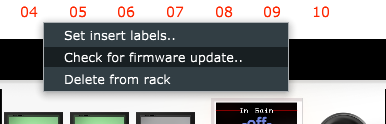
Simply click anywhere on the white front panel in the plugin to open the firmware update dialog.
When there is new firmware avaialable this screen will appear.
(note, this is a screenshot of an old development version of the firmware, please ignore the version number in this screenshot)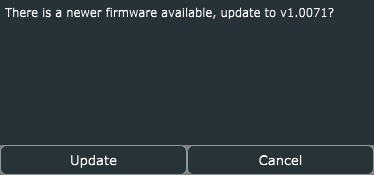
Click update and the firmware will start updating. The screen will look something like this.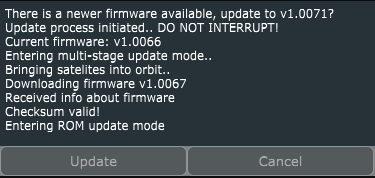
It’s possible that a multistage update is needed. In that case the unit will reboot multiple times and continue the updates by itself.
DON’T INTERRUPT the update process.
After all updates are done, the Insert Computer will reboot and will revert back to its previous state and the plugin will show 'update complete'. It’s good practice to re-open the plugin after a firmware update has finished.
NOTES:
- The IC1.1 can be updated over ethernet, the ICX2.1 and IC2.1 also needs a USB connection.
- The computer running the plugin needs an internet connection to download the firmware file.
First of all, it’s important that the Insert Computer and your DAW are connected to the same network, so they can communicate with each other. By default, the ICx.x is set to DHCP, which means it automatically receives an IP address from your network. The plugin then searches for an Insert Computer on the same network. This will work perfectly fine in most situations, but you may want to consider setting up a DHCP reservation or assigning a fixed IP address to the unit. This can slightly speed up the initial connection process and ensures that the Insert Computer always uses the same IP address.

When using Windows, the first time you open the DuTCH.audio Rack plugin in your DAW, Windows Firewall will display a pop-up asking for network access. The plugin needs access to your local network to communicate with the Insert Computer. Depending on whether you are using Windows 10 or 11, the pop-up may look slightly different, as shown in the screenshot.
You only need to click Allow once to give the plugin permission to communicate with the ICx.x.
If you accidentally dismiss or cancel the firewall prompt the first time, the plugin will not have network access and will not be able to communicate with the Insert Computer. Fortunately, it is easy to reset the Windows Firewall policy so that the prompt appears again the next time you open the plugin in your DAW.
You can search/Google for “reset firewall settings Windows 10/11” to find plenty of information and video tutorials. Alternatively, you can follow the steps below to reset the firewall policy. The instructions shown here are for Windows 11, so the menus may look slightly different on Windows 10.
- Click ‘settings’ from the start menu.
- On the left click ‘Privacy & Security’ > Click ‘Windows Security’
- Click ‘Firewall & network protection’ (a new screen pops up)
- Click ‘Advanced settings’ in the bottom (you will get a pop up from windows security, click yes)
- In the next screen you will see an 'actions' menu on the right side.
- Click ‘Restore Default Policy’.
- You will get a popup explaining what will happen, click yes.
- All firewall settings are now reset to default.
The next time you open an application, you might get some popups from the firewall asking for access when it needs a network connection. You need to click allow, just like when you open the plugin for the first time.
We cannot be held responsible for any problems using this reset procedure. If you don’t feel comfortable doing this, please ask for help by a system administrator.
We decided that (for the moment) we don't release an AAX plugin for the IC series. But this doesn't mean you can not use the Insert Computers in ProTools. You can simply use a VST wrapper or Aux I/O. More on that can be found here.
Yes you can! We have made a (pretty amateur) movie about the IC1.1 back then. But it explains quite good how things work with the insert computers!

Insert Computers Comparison Chart
Below you will find a comparison between all Insert Computer models. You might want to check this using a desktop computer rather than a mobile device.
| Model | ICX2.1 (2u) | IC2.1 (2u) | IC1.1 (1u) |
| Price (ex vat) | 4000 euro | 4750 euro | 3250 euro |
| input amount (stereo) | 2 (XLR) | 2 (XLR) | 1 (XLR) |
| input select | 2x input button | 2x input button | no |
| active gain +/-10dB | yes | yes | yes |
| polarity swap | yes | yes | yes (dual function button) |
| L/R swap | yes | yes | yes (dual function button) |
| insert amount (stereo) | 6 (XLR) | 9 (DB25) | 8 (DB25) |
| insert 1 | pasv (swap 1/2) | pasv (swap 1/2) | pasv |
| insert 2 | pasv (swap 1/2) | pasv (swap 1/2) | pasv |
| insert 3 | pasv | pasv/blend (dry/wet) | pasv (swap 3/4) |
| insert 4 | MS/pasv, width, mutes, (swap 4/5) | pasv | pasv (swap 3/4) |
| insert 5 | MS/pasv, width, mutes, (swap 4/5) | MS/pasv, width, mutes | MS/pasv, width |
| insert 6 | pasv (pre/post) | MS/pasv, width, mutes | MS/pasv, width |
| insert 7 | no | pasv (swap 7/8) | pasv |
| insert 8 | no | pasv (swap 7/8) | pasv (pre/post) |
| insert 9 | no | pasv (pre/post) (XLR) | no |
| output amount (stereo) | 2 (XLR) | 2 (XLR) | 1 (XLR) |
| output select | 2x output button | 2x output button | no |
| insert bypass | yes | yes | yes (dual function bypass button) |
| bypass gain compensation +/-10dB | yes | yes | yes (dual function bypass button) |
| active gain +/-10dB | yes (seperate gain per output) | yes (seperate gain per output) | yes |